Tag: developer tools

  • Red Hat Unveils Developer Hub to Boost Dev Productivity

    Red Hat Unveils Developer Hub to Boost Dev Productivity

    At its Red Hat Summit conference today, Red Hat unveiled its Red Hat Developer Hub, a developer portal that provides access to an opinionated set of development tools based on the open source Backstage project.

    The portal pulls together a set of curated tools and resources so that developers encounter less friction and avoid the complexity of numerous optional tools that span disparate vendors. The goal is to increase developer productivity while reducing the volume of optional tools and information that must be sifted through to actually deliver production code.

    Red Hat Developer Hub aims to streamline the development process and allow organizations to maximize existing resources and developer skills while reducing sprawl, said Chris Wright, CTO and SVP for global engineering at Red Hat. This will help organizations maintain application development velocity and drive a consistent user experience for developers based on tools and skills they’re already familiar with, Wright told attendees.

    Rather than building and maintaining their own internal developer portal, Red Hat is making a case for using Developer Hub to deliver a platform approach to addressing the complexity and sprawl DevOps teams face. Red Hat Developer Hub is, in essence, an opinionated and optimized version of Backstage that aims to deliver improved developer experiences across environments, including Kubernetes and container application platforms such as Red Hat OpenShift.

    Developer Hub will offer a single pane of glass to view all available developer tools and resources, developer self-service capabilities and security and compliance guardrails for cloud-native application development that comply with enterprise-wide best practices, according to the company.

    Additionally, Red Hat Developer Hub includes a set of ‘golden path’ templates—pre-defined, pre-architected and supported templates for further accelerating application development.

    The developer hub is based on the Cloud Native Computing Foundation (CNCF) incubating open source project Backstage, originally developed by Spotify and donated to the CNCF in 2020. Backstage is now being advanced by contributions from multiple vendors, including Red Hat.

    Backstage has been gaining traction in cloud-native application environments that are especially challenging to develop using multiple tools. There’s a lot more focus on developer productivity, which Backstage addresses by creating a catalog of blueprints that developers can readily consume rather than requiring them to build these capabilities themselves multiple times over. The goal is to create scaffolds that developers can consistently reuse across multiple application development projects.

    Red Hat has also developed Red Hat Plug-ins for Backstage, a bundle of six plug-ins that integrate various key systems into Backstage, helping to extend the project’s functionality, ensure a consistent user experience and improve workflow efficiency. The plugins can be used across all Backstage installations, providing even more flexibility for developers across platforms and Kubernetes distributions and include:

    • Application Topology for Kubernetes, which enables developers to visualize real-time status of application and infrastructure workloads deployed to any Kubernetes target, including Red Hat OpenShift, with greater consistency.
    • Multi-Cluster View with Open Cluster Manager (OCM), which provides a view into clusters from Open Cluster Manager’s MultiClusterHub and MultiCluster Engine in Backstage.
    • Container Image Registry for Quay, which improves the integration and speed of interactions with Quay registries by providing a view into container image details. This includes security vulnerabilities (CVEs) associated with deployed images.
    • Pipelines with Tekton, which gives users a view into the details of all Tekton pipeline runs and their respective statuses across all services.
    • Authentication and Authorization with Keycloak, which enables platform engineers to load users and groups from Keycloak into Backstage, allowing the use of multiple authentication providers to be applied to Backstage entities.
    • GitOps with Argo CD, which helps track the health and status of the Argo CD status for services within Backstage.

    Red Hat said additional plugins are in the works. Red Hat Developer Hub will be generally available later this year, but Red Hat is offering a ‘test drive’ through the upstream IDP project Janus.


  • Salesforce Spring 2023 Release: Out With the Old, A Lot of the New

    Salesforce Spring 2023 Release: Out With the Old, A Lot of the New

    Salesforce is the connector and enabler of so many critical business functions. But that doesn’t mean it doesn’t come with its headaches. The environment is so complex that it really takes a conscious, focused effort to properly leverage all that Salesforce has to offer, as well as stay up-to-speed on everything that’s new and evolving.

    The Salesforce spring ‘23 release brought a lot of change. Some old tools disappeared and new products, dashboards and automation tools were introduced that admins will have to adapt to. There’s a lot to catch up on.

    Combing through the 600+ pages of release notes, there are three main themes represented in the spring release that will be useful to the entire organization, from DevOps and RevOps to sales and marketing teams, including: 1) new admin and developer tools and dashboards, 2) doubling down on low-code/no-code with enhancement to Flow and 3) commitment to security and permissions best practices.

    Admin and Developer Updates

    From an administrator’s and developer’s perspective, there are some exciting new features that will undoubtedly improve DevOps’ day-to-day. For instance:

    • Flows – allows you to migrate your old automations.
      • Connect to external data source (beta)
      • Support for lookup fields
      • Reactive screens (reduce the number of “Next” clicks)
      • Removal of “Iteration Limit Exceeded” governor limits
      • Element descriptions are now visible on the canvas
      • Migrate to Flow from Process Builder

    • DevOps Center – Still in V1, but it provides developers with a new interface.
      • Getting on the software development life cycle bandwagon so we can all say goodbye to change sets – finally!
    • Dashboards – Now you can insert text and graphics around charts.
      • Collections – organize reports and dashboard into logical collections that are free from their folder hierarchy. While they will still “live” in their folders, they can be accessed from a collection as well.
      • Add image and text components in your Dashboard to make better experiences with additional information, descriptions, instructions or whatever you want.

    These updates are not only useful for DevOps but, from an executive viewpoint, are extremely useful to showcase the business’s data with a clearer perspective. In other words, the new dashboards have more options to provide additional context and insight. In general, the user interface is not only more organized but can be navigated at a significantly faster rate than before.

    Doubling Down on Flow

    As the old adage goes, “Out with the old, in with the new;” Salesforce will be retiring the automation tools Workflows and Process Builders and converting them to Flow. The reason Salesforce is making this move—and ultimately forcing users to Flow—is because Workflows and Process Builders don’t have the flexibility or functionality that Flow does. Flow can create automation and provide great screen experiences that derive a far greater bandwidth of context and situational logic. The additions made to this much-anticipated migration tool will help administrators convert their current automation into Flow with less stress and hassle than rebuilding them all from scratch.

    So what is the timeline for this migration? Salesforce plans on blocking the ability to create new Process Builders in the Summer ‘23 release but has admitted that it’s not a hard date and will look at the success of customers’ migrations to Flow and feedback from the community. They have not yet announced a date for complete retirement but expect it to come sometime in 2025. That said, users should start doing this now. With any major change to your Salesforce environment, a plan is always recommended, especially with such a huge migration like this one. Given the amount of data and processes most organizations already have in place, we suggest taking time to strategize and test your migration prior to releasing it directly to Flow to make sure your order of operations for your automation is clear and follows best practices. Analyze your business processes and confirm with your users that these processes are still accurate.

    Commitment to Security

    As organizations lean more on Salesforce as their primary business operating system, Salesforce is becoming a critical piece of infrastructure rather than just software that businesses consume. It is also the “build-and-develop” nature of Salesforce that has more companies treating Salesforce as software they build rather than just software they use. The ripple effect is that as companies build within Salesforce, more developers are responsible for deploying and managing data. With that comes the responsibility for security and compliance.

    This has traditionally been handled as an administrative task, but now, Salesforce has created the tools for true enterprise infrastructure security and data management with permission sets and permission set groups. Even though permission sets have been around a while, the introduction of permission set groups and the growing need to transition permissions into more complex structures have changed the way permission sets are being consumed. Permission sets were previously used for basic exceptions to the permissions provided by profiles, but now they are front and center, providing even more organizational capability with Permission Set Groups (and their muting capability, but that’s a different story).

    Salesforce has taken note and announced the partial end of permissions within profiles as they lean into the new, better way to manage permissions. Profiles won’t be gone entirely, as they will still be needed for basic defaults, i.e., defining users’ default app selections. However, while Permission Sets will still have the responsibility for what apps you have access to, it will be the Profile that states which one is your default. This is also true for other types of assignments where there needs to be a single source of truth, like page layout assignments.

    Salesforce said they will be enforcing this plan in 2026 but are beginning to make sure everyone gets on board now by releasing great new tools to make this transition smoother, including user access policies and access to Permission Sets when adding new fields (currently only available for profiles). For large organizations, three years is just around the corner when it means implementing major overhauls in technology and philosophy to the business. While some are heading to building Permission Sets based on each object, I’d recommend basing them on features or functional areas to have the most control and the clearest overview of your new vast area of Permission Sets.

    Next Salesforce Release

    Overall, the spring ‘23 release was jam-packed with content to boost productivity, strengthen security, enhance the user experience and improve the overall business functionality. There are two Salesforce releases still to come in 2023, and I’ll be dissecting them both to highlight the most critical changes that can help you better your business. I’m looking forward to seeing what the summer ‘23 release has in store – any predictions on what Salesforce will come up with next? I’ve got a few guesses…

  • Introduction to Flutter

    Introduction to Flutter

    Flutter is a development tool for creating cross-platform applications. Flutter was created by Google to help developers create frontends that run on almost any operating system, including Android, iOS, Mac, Linux, Windows desktop and the web.

    Ready to check it out? You’ll first need to install the Flutter software development kit (SDK).

    Installing Flutter

    To use the Flutter SDK, you need to have git installed on your computer; here are some tips for installing it based on your OS:

    • Windows: Download it here.
    • Mac: Although you can install Git manually, your best bet is to simply install Xcode, which includes Git; you’ll need XCode later.
    • Linux: In addition to Git, you’ll need several other tools listed here. If you’re using Ubuntu or Debian, you can get them all with this single command: sudo apt install git zip unzip curl xz-utils libglu1-mesa
    • ChromeOS: This option requires you to enable Linux on ChromeOS. Then you’ll want to install the same packages that I just listed for Linux.

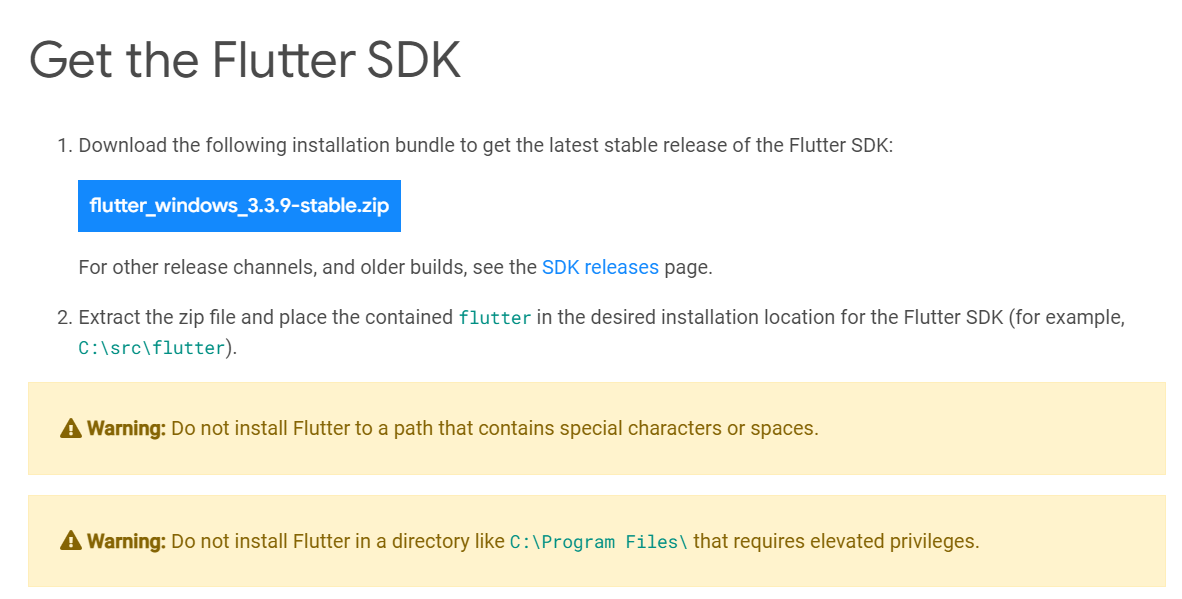
    After the above prerequisites are met, you can download Flutter by going to this link.

    You can either download the SDK for your operating system or you can obtain it from GitHub. Only attempt the GitHub option if you’re familiar with cloning Git repositories.

    In this example, I’m going to download the Windows version by clicking the Windows link, which brings up the screen shown below. For Windows in particular, pay close attention to the warnings about where to install the SDK. (I like to have a folder called c:\dev where I put all my dev work, and under that a folder called c:\dev\tools. So the latter is the folder where I’ll put the SDK.)
    After the file is downloaded, extract it to a location such as c:\dev\tools.

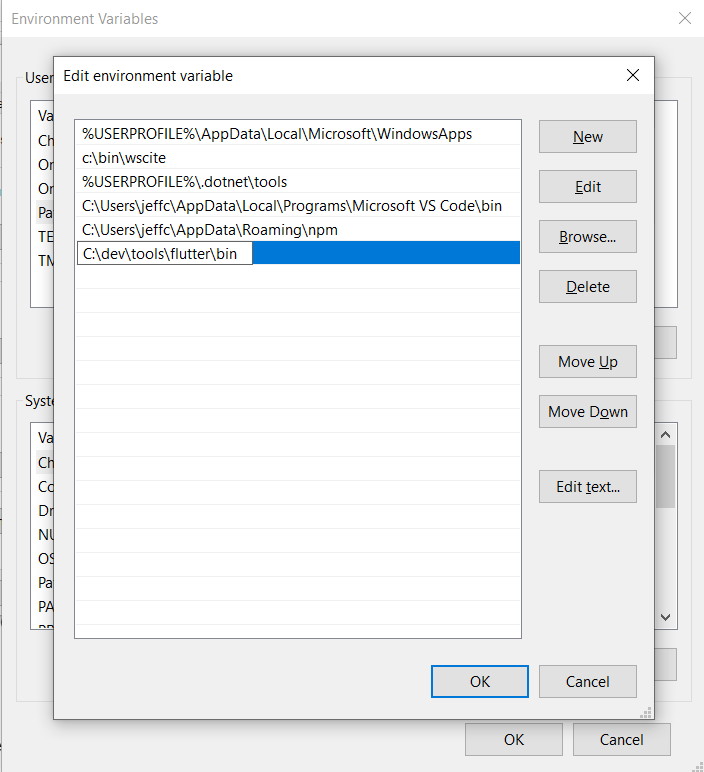
    For Windows, Linux and ChromeOS, the next step is to update your path so that the system can find the tools found in the Flutter folder’s bin folder. (Mac users don’t need to do this step.) The Flutter installation docs are helpful here:

    • Windows: Make sure you use the full path, starting with the name of the folder you extracted the zip file into. For example, on my machine, that would be C:\dev\tools\flutter\bin, as shown in the image below. Then after you update the path, you’ll need to close and reopen your command-line shell (either Windows CMD or Powershell). For detailed instructions, go here.
    • Linux: Follow the instructions here.
    • ChromeOS: Follow the instructions here.
    Now test out the Flutter command to make sure it works by going to a folder outside of the Flutter’s bin folder and typing:

    flutter --version

    You should see a message such as this:

    Flutter 3.3.9 • channel stable • https://github.com/flutter/flutter.git
    Framework • revision b8f7f1f986 (2 weeks ago) • 2022-11-23 06:43:51 +0900
    Engine • revision 8f2221fbef
    Tools • Dart 2.18.5 • DevTools 2.15.0

    This will tell you if the installation is possibly ready. If instead, you see a message that the command is not found, double-check that you have your path correct; that’s typically the most likely cause for that error.

    Now, why did I say ‘possibly’? Because Flutter itself can tell you if there are any other tools you’ll need by running this command:

    flutter doctor

    Here’s an example of what I saw when I ran it:
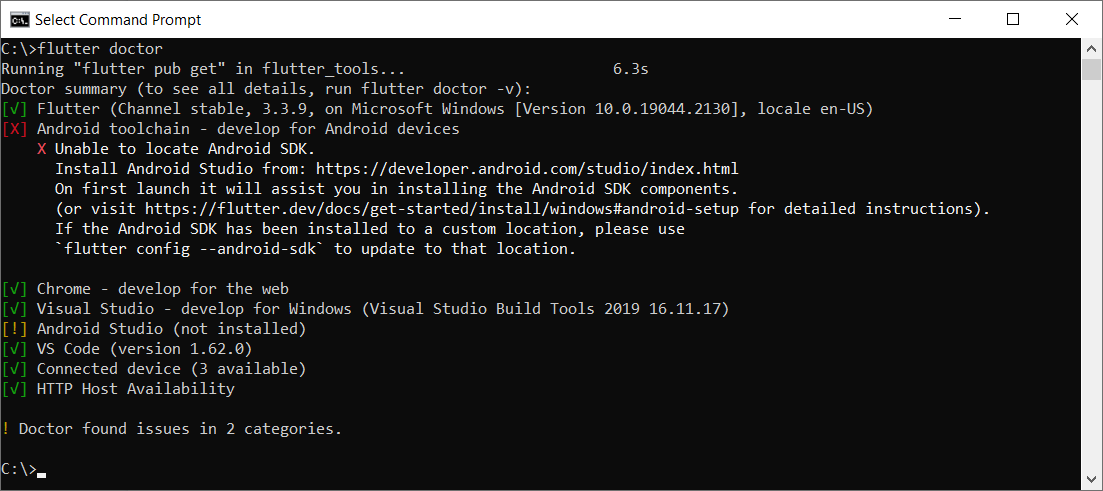
    This tells me I have some of the necessary tools installed, but not all:

    • Flutter itself, as well as all the tools that came with it
    • Android toolchain: I don’t have this one.
    • Chrome browser: You’ll need this for debugging web versions of your app.
    • Visual Studio: This is the full IDE from Microsoft; you’ll need it if you want to develop your app for Windows Desktop. You can use the free Community version. For that, go here and choose the free Community version.
    • Android Studio: I don’t have this one.
    • VS Code: This refers to Visual Studio Code, the free editor/IDE from Microsoft, which is not the same as Visual Studio. It’s a separate tool and neither is dependent on the other. Before you install it, read my notes below.

    Before installing anything else, you’ll want to decide what platforms you’ll be targeting. If you’re going to include Android in that list, you’ll need to download and install both the Android toolchain and Android Studio. In that case, you’ll be developing from within Android Studio.

    But if you’re not targeting Android, you do not need to install the Android toolchain or Android Studio. The official installation docs are a little vague on this point, so I tested it out myself. I was able to target Windows desktop and a browser without needing to install any of the Android tools.

    If you’re not targeting Android, then you’ll want to install VS Code to do your development from within. You can find it here.

    Building an App

    For this example, I’ll continue with Windows, and I’ll build a quick Windows desktop app.

    In a command shell, I’ll first create a folder in my c:\dev to hold my projects by typing these commands:

    cd c:\dev
    md projects
    cd projects

    I’m going to make a Flutter app called flutter_demo by typing the following. (Make sure you’re in the projects folder before typing this):

    flutter create flutter_demo

    Note that the name for your project must be in all lowercase letters, and it can contain underscores. So, for example, using uppercase letters results in an error:

    If I type this:

    flutter create FlutterDemo

    I see this:

    "FlutterDemo" is not a valid Dart package name.
    See https://dart.dev/tools/pub/pubspec#name for more information.

    When done correctly, you’ll see output such as this:

    Creating project flutter_demo...
    Running "flutter pub get" in flutter_demo... 1,186ms
    Wrote 127 files.
    All done!
    In order to run your application, type:
    $ cd flutter_demo
    $ flutter run
    Your application code is in flutter_demo\lib\main.dart.

    Before we open the code, let’s run it! First, go into the new folder flutter created:

    cd flutter_demo

    Then run it by typing:

    flutter run

    This command runs whatever Flutter application is in the current folder. In this case, that’s the app you just created.

    When you start it, it will ask for some choices. Because I don’t have Android or an emulator installed, I only see options for Windows Desktop and Chrome and Edge. (Edge is based on Chrome, so it works, as well.) Here’s what I see:

    Multiple devices found:
    Windows (desktop) • windows • windows-x64 • Microsoft Windows [Version 10.0.19044.2130]
    Chrome (web) • chrome • web-javascript • Google Chrome 107.0.5304.107
    Edge (web) • edge • web-javascript • Microsoft Edge 106.0.1370.37
    [1]: Windows (windows)
    [2]: Chrome (chrome)
    [3]: Edge (edge)
    Please choose one (To quit, press "q/Q"):

    Press the option for Windows. This will build the Windows desktop version (which might take a minute or so) and launch it, resulting in a window that looks like this:
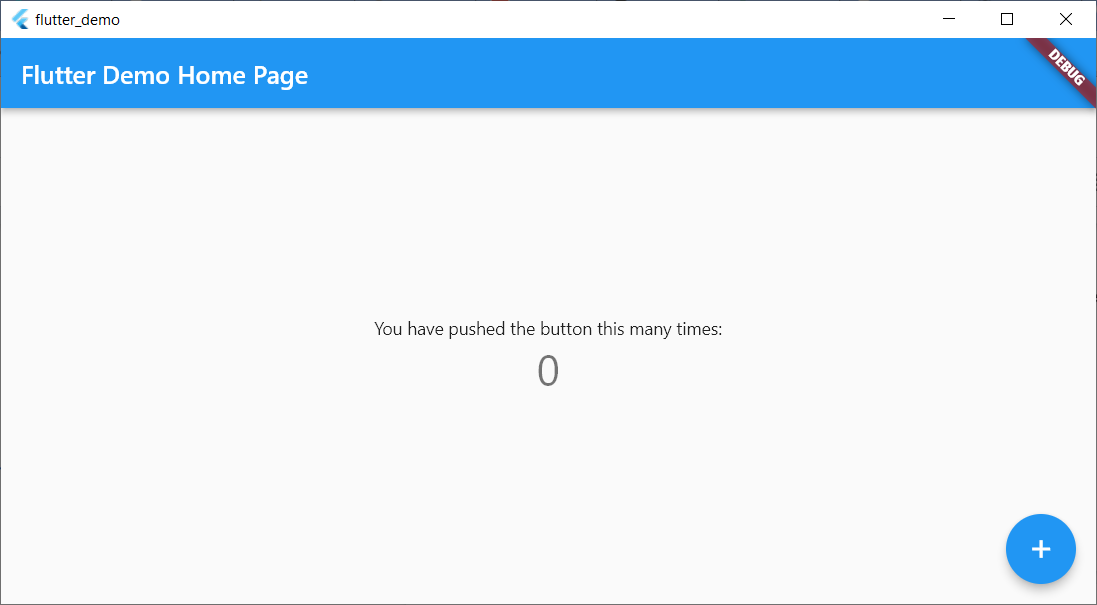
    This isn’t much, but there’s a sample in it where you can click the plus sign and see the number in the middle increment. That’s all.

    Now let’s try running the same app in Chrome. First, close the app window and press Arrow-Up or re-type:

    flutter run

    This time, choose the option for Chrome.

    Now Flutter builds a web-ready version that runs on Chrome, starts a local web server to host the app, launches Chrome and pushes a URL to Chrome to load the app from the local web server. Here’s the browser window:
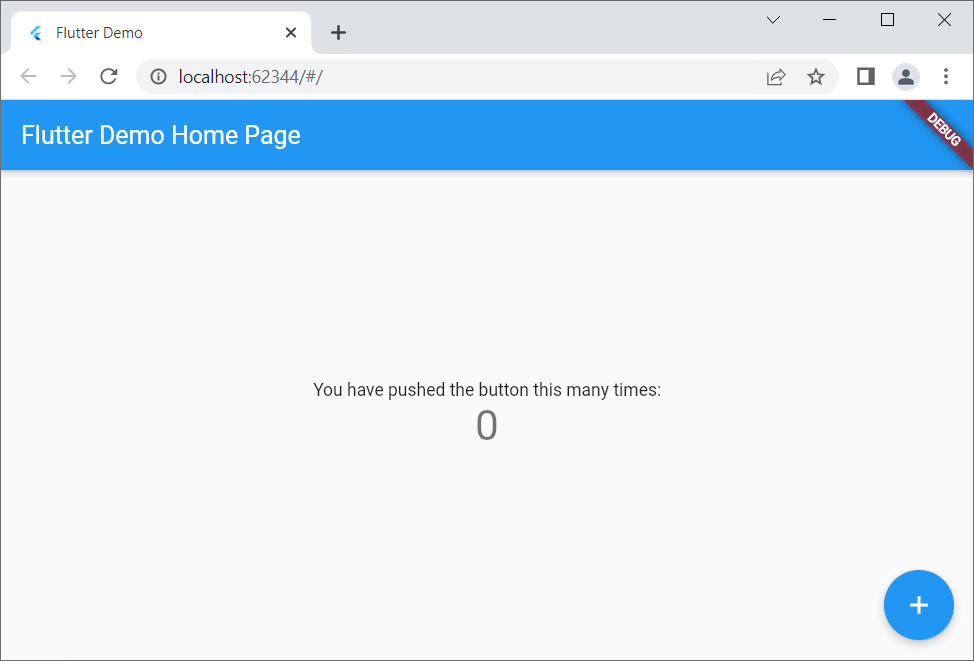
    Notice that it looks virtually identical to the desktop version but is inside a browser this time.

    If you’re a web developer, I encourage you to right-click inside the browser app and select View Page Source. Notice there’s a line that loads a file called flutter.js, and there’s some JavaScript code that responds to the window’s Load event that calls into Flutter. You won’t be writing JavaScript code, but it’s always good to have at least some understanding of what your front end is doing!

    Adding to the Code

    Now let’s add just a bit to the sample code. For this, I’ll use VS Code. From within the app’s main folder (in my case, c:\dev\projects\flutter_demo) type

    code .

    (Make sure to include the dot after the word code; otherwise, VS Code will open in whatever folder it last ran.)

    Before delving into the code, you’ll want to install a special Flutter extension for VS Code. Click the gear in the lower left and click Extensions. In the box labeled Search Extensions in Marketplace, type flutter. (Don’t click Enter; just pause a moment and the search will begin.) Find the one called Flutter that has over five million downloads, as shown here:
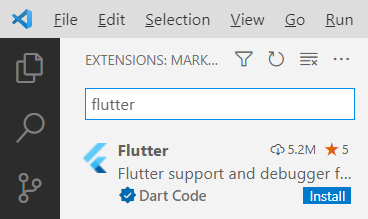
    Click the Install button. The button will show “installing” while the extension is being downloaded and installed.

    After the extension is installed, VS Code will ask whether you want to use it with your current project. You might also see a message regarding updating the Dart extension, which came alongside Flutter. Click Yes for the Flutter one; click Get packages for the Dart one. (You can ignore the message about opening the settings file.)

    Now you have all several flutter tools available VS Code’s Extensions Palette. Press Ctrl+Shift+P to open the palette. Type flutter and you’ll see the full list.

    For now, however, let’s first just run the app. Click the Run menu, and then click Run Without Debugging. You’ll see the Windows app open again.

    Now go back to VS Code. Even if you’re not familiar with Dart, if you know other “curly bracket” languages such as C++, C#, Java, JavaScript and so on, you’ll probably be able to read the code. There’s a function called main() that starts the app, providing a class called MyApp. That class is farther down in the code. Look closely at all the comments. Read them carefully and learn from them. The MyApp class contains a build function that returns an object with a “home” member; that member is an instance of MyHomePage, which is also a class in this file. Continue studying that code, and you’ll see mentions of widgets and layouts. Look closely at the function called _incrementCounter and how it’s triggered later on through an onPressed event.

    Conclusion

    Play around with the code; try changing some of the string literals, for example, until you’re quite familiar with it. Then dive into the first demo provided by the Flutter folks at Google, which you can find here. Soon you’ll be up and running with your own Flutter app that you can run on any device!


  • Gitpod Looks to Drive Application Development Into the Cloud

    Gitpod Looks to Drive Application Development Into the Cloud

    Gitpod today revealed it will add an application programming interface (API) to make cloud development environments (CDEs) more extensible. Gitpod also said Johannes Landgraf assumed the role of single CEO for Gitpod, as the previous co-CEO, Sven Efftinge, becomes the company’s first technical fellow.

    Fresh from raising an additional $25 million in funding, Gitpod’s Landgraf said that API will make it easier to build plug-ins for CDEs. In time, Landgraf said, CDEs will become as accessible as any development environment running on a local desktop.

    Software engineers typically waste five hours a week maintaining application environments, noted Landgraf. Via an open source development platform, Gitpod automates the provisioning of secure workspaces in the cloud that provide the added benefit of making it easier for multiple developers to collaborate, he added.

    Capabilities added to the GitPod product roadmap include dramatically faster startup times, improved resiliency and a Gitpod Cloud offering for larger companies as well as a preview environment and workflows that foster collaboration. Gitpod also announced it passed a SOC2 Type II security audit.

    Today, the Gitpod platform is being used by more than 750,000 developers at organizations such as Shopify, Stripe and Slack, noted Landgraf.

    One of the longstanding issues that has always been problematic when building software is that code that runs on a local desktop doesn’t always work when deployed in a production environment. The Gitpod API will make it simpler to spin up various platforms and tools whenever a developer accesses a CDE. The goal is to make it possible to more closely replicate the production environments on which developers will ultimately deploy their applications, noted Landgraf.

    In addition, a CDE should reduce the amount of data that developers routinely move between laptops and cloud computing environments as they build more complex applications, he added.

    In the wake of the economic downturn, there is a lot more focus on developer productivity these days, especially as organizations look to accelerate their of digital business transformations. DevOps teams are also keen to find ways to centrally manage developer experience at a time when many of those developers continue to work from home, said Landgraf.

    It’s not clear to what degree CDE will replace integrated development environments (IDEs) running on a local machine, but all the major cloud service providers are encouraging developers to build applications in the cloud where their applications will run. The challenge is that many of those offerings tend to lock developers into a specific cloud platform, noted Landgraf. Most developers today are building applications that need to be deployed across multiple clouds, he added.

    One way or another, software development is increasingly shifting to the cloud. Most organizations will likely try to find a balance between the amount of code developed on a local machine that developers can just fire up when the mood strikes and the amount of code developed in the cloud. The most immediate challenge is to make sure the CDE experience is every bit as good as the existing local IDE.

  • Using Internal Wikis for Web Development Projects

    Using Internal Wikis for Web Development Projects

    A team-based web development project is always a complex endeavor. It involves different developers with varying levels of experience, different fields of expertise, milestones to accomplish and a timeline to achieve.

    To facilitate the sharing of information, it’s not always enough to use project management tools like Asana or Jira. Sometimes, a wiki may be needed to help distribute knowledge and best practices to everyone working on the project.

    In this guide, we discuss the practicality of using wiki tools for information sharing among web devs.

    What is a Wiki?

    A wiki is a program that enables users to collaborate in the creation and population of the content for a website. The word comes from the “wikiwiki,” which is Hawaiian for “fast.” In other words, a wiki is an app that allows for crowdsourced content to create pages of information.

    In addition to wiki pages, Web 2.0 tools allow users to connect and share information via rich media such as RSS, OpenSocial and OpenID. Another use for wiki tools is to share creative content such as photography and design concepts. A very simple way of sharing web pages on the wiki is to add a share icon at the top of the page. Simply add the share icon to a wiki page.

    The Benefits of Wikis

    Wikis bring a number of benefits to web dev teams, such as:

    Knowledge Sharing

    Since people working on the project have different levels of expertise and experience, the wiki allows subject matter experts to contribute information based on their specialization. This valuable knowledge can be accessed by others who need such information and dispels the formation of “information silos” that usually impede teams working in isolation from each other.

    Searchable

    The information stored in a wiki is categorized and organized in hierarchical and logical structures. It allows users to easily search for information based on topic, field or category, and learn what they need in an instant. This improves productivity and minimizes the need to chase other colleagues down in the search for data.

    Single Source of Truth

    By acting as a central repository of information, all data gets vetted before making it into the wiki. This makes the stored information verified and accurate and the wiki acts as the single source of truth for the whole team.

    Easy Updates

    The wiki allows contributors to update information easily and conveniently. As such, all references are up-to-date–a critical factor for any web dev project.

    Wikis and Web Development

    Wikis have the potential to make it easier to share knowledge with stakeholders as well as spread the expertise of a motivated development team, leading to better management and accountability. 

    Many wikis are publicly funded in different ways. For instance, several open source wikis exist, such as BikiWiki, ObjectiveWiki, GrowWiki and PDFLabs wiki, but we can see a few web-based initiatives in this space as well. These include Virgil Technology wiki and KnowledgeVerify.

    Microsoft’s SharePoint platform is arguably one of the best solutions for online collaboration on web-based projects. Because SharePoint is integrated with almost all major applications (Windows, Word, Excel, PowerPoint, etc.), users can create shared webpages based on SharePoint site templates and share these with their colleagues. While it’s true that SharePoint cannot solve all the problems related to information sharing and preservation, it provides a great starting point for finding common ground on project development.

    The Advantage of Wikis Over Other Collaborative Tools

    While project management tools usually incorporate collaborative functions, they are not as full-featured as a wiki is when it comes to knowledge sharing. The wiki is notable for having the following features that other tools may lack:

    Search functionality: Wikis have full-featured search capabilities to aid in the search for information. No need to drill down tree structures and categorical hierarchies.

    Comments: Adding comments to a page is an efficient and fast way to contribute and help others.

    Content creation: You can write wiki articles using any text editor, or you can write it using the wiki syntax—it largely depends on the platform. The wiki syntax is quite similar to the HTML format. One thing that makes wikis useful is that when you share a wiki page, everyone can see the changes as they are made. So sharing works through a web link instead of having to publish to a file.

    The wiki markup is a sequence of tags that represent the structure of a page. There are two main types of wikitext; the wiki syntax and the HTML syntax. The wiki syntax comes from Wikipedia, which is a popular wiki. Both are immediately available to devs, making content creation and editing easier.

    Access control: Since wikis can change based on edits and the number of links get added to the pages, they use an access control and version management system.

    With its growing array of software options and constant framework decisions, the world of web development always needs quick, organized patches of information. Rapid creation and publishing options mean that, for an almost 20-year-old technology, wikis can still be a valuable tool for web devs today.

  • Free Dev Tools! But What’s the Catch?

    Free Dev Tools! But What’s the Catch?

    Software companies, especially young startups, are always in a development race – by definition, they are trying to maximize achievements and minimize their burn rate. That means development teams naturally face an internal tug-of-war. On one hand, they seek to use the newest dev tools that the market can offer, targeting their applications to become better (more secure, more efficient and compliant with the latest standards). On the other hand, they cannot spend money on such tools since they need to save every penny. With the current economic climate, many new investments are being delayed or, at minimum, double-checked. 

    To appeal to developers, many vendors and software development tool companies offer freemium programs. Some are driven by the spirit and the goodwill of open source and community; others are business-to-developer (B2D) companies relying on the product-led growth (PLG) mode. If developers see value in the free tools, they are more likely to become paying customers later on to get access to more features.

    Here, we’ll review the common parameters of popular free developer tools and distinguish their services between the free tier (aka the community tier), the entry-level paid tier and other paid program offerings. We’ll look at tools for observability, logging, vulnerability scanning, compliance, authentication and VPNs.

    1. Volume Threshold

    Logs are considered to be one of the three pillars of observability and are the bread and butter of troubleshooting and debugging. The more code lines you have in your product, the more loglines you collect, store and aggregate. Logs accumulation can quickly get out of hand and become very heavy on the budget. One logs aggregation vendor, Sumologic, provides a freemium offer that allows log collection up to one gigabyte per day. If you need more volume, you can move to their paid tier that allows for higher volumes or pay more for no limits at all.

    2. Transactions Threshold 

    Transactions and tests are probably the most imperative features of a freemium offer. It involves the core offering with a quantity limitation, giving you a chance to try the product through practical use, but you’ll probably have to move up quickly into the first paid tier. Snyk.io, for example, will help you scan your open source software for flaws alongside container vulnerabilities as early as code creation, with up to 200 open source tests and 100 container tests per month.

    3. Certified: Security and Compliance 

    It’s one thing to play with, say, a free AutoCAD seat that doesn’t involve sensitive data and another thing entirely to draft the next-generation design that must not leak to your competitors. Security and compliance certification is often included in the freemium tiers; more detailed reports and analysis of security and compliance are for the paying tiers only.

    4. Availability and SLA Support 

    Having a free tool is great–but if this tool is bound to a proprietary service, then you should probably demand these tools meet the same standards and SLAs that you are offering your customers. Observability platform Rookout offers 24/7 support and dedicated account managers and tools for enterprise customers in all tiers.

    5. Legal Aspects 

    One key aspect of free tiers is the legal aspect of using the tool. The dev tool may interact with sensitive data, not only in your own dev environment but also with your customers’ environments. Your customers may require your dev operations to meet specific criteria, making the free tier a potential legal issue. For example, if you use the free tier of JFrog to manage your supply chain, you won’t be able to use Artifactory to publish data to third parties; should you want to do that, you will have to move to one of the paid commercial programs.

    6. Usage Threshold

    Some free tools operate based on a usage model—you are entitled to a free tier until a certain amount of users or actions is reached. Auth0, for example, a user authentication solution (now part of Okta), provides their service free of charge for up to 7,000 users (generous!) but should you grow beyond that, you’ll need to graduate to a paid tier and be charged according to your monthly usage.

    7. Speed Threshold

    Some free and freemium offerings are tempered based on connectivity speed, bandwidth and even VPN. Today, you can even get a secure VPN for free, but only to a specific threshold. For example, ProtonVPN will provide you with a free VPN at a medium speed, if you move to the highest speed VPN, you’ll need to move to a paid tier.

    In most cases, the freemium tier will limit a dev tool’s usage according to one or a few main characteristics but will allow you to perform the basic actions and enjoy the essence of the tool. Some parameters may be trivial, like volume of tests, while others require developers and DevOps teams to carefully monitor usage. There’s a lot of value in free and freemium dev tools—but make sure you read the fine print.

  • CodeSee Unveils Open Source Hub

    CodeSee Unveils Open Source Hub

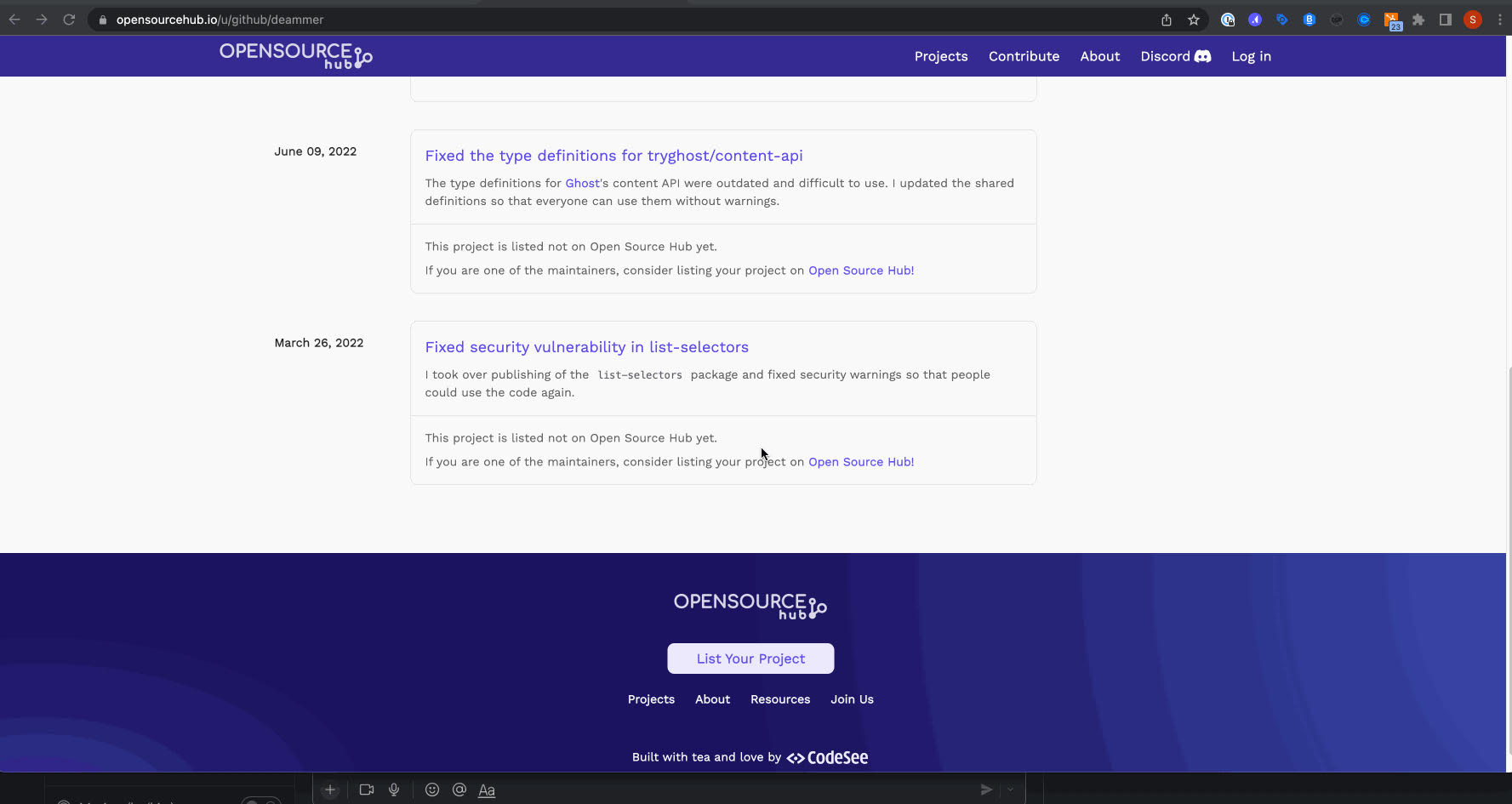
    CodeSee today launched a free Open Source Hub (OSH) community through which developers can more easily analyze the codebase that makes up an open source software project.

    Shanea Leven, CodeSee CEO, said that capability is crucial because making it easier to explore open source codebases reduces the level of effort required for developers to understand where to make contributions.

    OSH is based on a namesake visualization tool that CodeSee created. The CodeSee tool makes it possible for developers to see how a codebase has been constructed using graph technologies that scan software repositories and identify components and their relationship to one another. Developers can also use CodeSee to better understand what impact changes to that codebase will have.

    In addition to making it easier for developers to discover open source software projects, OSH also enables maintainers and contributors to create personal profiles through which other members of the open source community can see how their efforts have impacted various projects.

    CodeSee, as part of OSH, is also providing integration with Discord, an online voice, video and text collaboration service, to make it simpler for maintainers and contributors of open source software projects to collaborate.

    Leven said it simply takes too long today for most developers to pore over a codebase to understand where they might contribute. The larger a codebase becomes, the less likely it is a developer will want to take the time required to begin making a meaningful contribution, she noted.

    OSH is arriving at a time when maintainers of open source projects are especially looking for help securing open source software. The core issue is that many of those projects are maintained by a small number of programmers that voluntarily contribute their time and effort to build components that others are free to use. Like any other developer, the amount of security expertise those individuals have is limited. Many of them simply don’t have the time to immediately provide a patch to an application when a zero-day vulnerability is discovered.

    Unfortunately, many IT vendors and large enterprise IT organizations benefit from open source code without contributing anything meaningful back to the project—whether in terms of financing or helping open source maintainers find and remediate vulnerabilities. Not every contribution has to be in the form of code, either. Many open source projects simply need help with documentation which, once provided, should free up other contributors to focus more of their time and effort on application security.

    It’s not clear to what degree business and IT leaders realize how dependent their organizations actually are on open source software. Even when they do, it’s not easy to onboard a developer to any software development project. It can take months before a developer is actually making meaningful contributions to a project.

    Application development, by definition, is now a group effort. The days when a lone developer cared for an entire application are long over. The issue is finding a way for teams of developers to more easily collaborate when most of them have never actually met in person.

  • GitLab Gets an Overhaul

    GitLab Gets an Overhaul

    GitLab launched its next major iteration, GitLab 15, starting with its first release version, 15.0, which the company said pulls together new DevOps and data science capabilities into the platform. With GitLab 15, GitLab says it provides (or soon will provide) continuous security and compliance, enterprise Agile planning, visibility and observability, workflow automation and increased support for data science workloads.

    In an interview with devopsy.kinsta.cloud, Hillary Benson, director of product management, detailed how GitLab 15 provides several security benefits, including the ability to automatically create an exportable software bill of materials (SBOM) and signed attestation for build artifacts, centralized security policy management including a two-step exception approval process, as well as providing compliance managers the ability to see project history changes and better enforce policy. “Supply chain security, especially, has become a major area of focus for us, both because it’s become a high priority in the industry and because GitLab is uniquely positioned to support customers well in this area,” Benson said.

    GitLab 15 also provides improved static application security testing (SAST) with stronger and more flexible rules and finding management, Benson said. Finally, users can pool together GitLab project data to create custom automations.

    According to Benson, GitLab 15 will also introduce more capabilities that interlink data across every stage of the DevOps life cycle from initial planning, implementation, deployment and monitoring. “Some of the things that will happen in this area are additional options for the types of work items that can be managed,” said Benson. That includes supporting a more diverse range of workflows and frameworks—including enterprise Agile frameworks. The platform will continue to support issues, epics and requirements and soon enable tasks, features and objectives.

    GitLab 15 provides new capabilities the company hopes will increase visibility and enable an end-to-end view of value delivery and application health, the company said. The unified collaborative context will help remove DevOps silos within organizations and decrease incident rates as well as provide comprehensive insights into issues that hinder performance in addition to real-time triaging of incidents. These new capabilities can help shorten lead times from code to production, reduce error frequency and severity, help development teams deploy more frequently and reduce mean-time-to-recover (MTTR) after an incident.

    Upcoming features include improved product analytics and experimentation, such as increasing the practicality of surfaced data by enabling testing and validating new ideas and measuring the adoption of DevOps best practices across teams and projects, Benson said. Expanded support for all DevOps research and assessment (DORA) metrics including improvements to value stream analytics for projects and groups is also addressed. “This is about making it easier to understand what value your product is bringing,” said Benson. “We’re introducing product analytics and experimentation to increase the practicality of the data that you’re using and the data you’re collecting to actually move your product forward,” says Benson.

    Finally, GitLab 15 will increase support for data science teams and their workloads. “This is about streamlining the development and deployment of machine learning models to train and test those and then get them into production. We’ll also be working on providing monitoring for those workloads so that it can be understood if those models are being used, how they’re being used and where there may be performance issues,” said Benson.

  • DevSecOps Deluge: Choosing the Right Tools

    DevSecOps Deluge: Choosing the Right Tools

    In the last few years, DevSecOps has become the security process of choice for many forward-thinking enterprises. 

    These organizations have come to understand that fixing bugs in the latter stages of product and application development offers no favors to anyone but cybercriminals. So, they have overhauled traditional processes and united development, operations and security teams to form DevSecOps where the teams now work in tandem, cooperating to embed security into the entire process of application and software development.

    The benefits of this are clear; finding and fixing bugs early closes doors on cybercriminals while bringing peace of mind, cost savings and better products to customers. However, one of the challenges many organizations face when transitioning to DevSecOps is making the process seamless, ensuring it doesn’t slow down the software development life cycle, make security checks more cumbersome or cause frustration among teams. 

    Security teams need to ensure their DevSecOps program is delivering value to the culture of the organization while speeding up time-to-fix, capturing the right metrics, and categorizing and prioritizing issues based on their risk so that nothing goes live that could cause major damage.   

    Additionally, they also need to select the correct DevSecOps toolkit to carry out application security testing while ensuring the tools easily integrate into software development and can be used across multiple projects. When identifying tools for testing, DevSecOps teams are often overwhelmed by the huge range and volume available, which makes choosing which ones to use and learning how to use them a minefield, even for those with the right training and know-how. 

    A DevSecOps automation program needs lots of technical tools and cultural aspects to come together to make it work. Security teams need static analysis tools to check the code, third-party library analysis to check the dependencies, separate analysis to check the infrastructure-as-code (IaC) configuration, scanners to check containers for issues, tools to test the running system, cloud security checks and infrastructure testing for patches and ports. They also need to match these tools up to the right technology each team is using and keep up with the constant changes.

    Given all of these complexities, how can DevSecOps teams overcome these challenges and build out an effective DevSecOps program with the correct toolset? 

    Here are some top tips to help them along the way.

    Keep Security Processes Flexible 

    Your teams are going to be using different technology stacks, different languages, frameworks, and so on. If you tie your process too tightly to a few tools, it’ll be harder to slot in new checks when things change. Remember that the aim is a consistent, repeatable security process with the right visibility—the technical tools feed into that, but they are not the whole process. What security checks will you need in 12 months that you don’t have now? What about 36 months? These are questions that must be asked continuously. 

    Automation is Your Friend

    If development pipelines are running smoothly and automatically, then any manual security steps are not going to fit in with the process. Automating security tools together—from orchestrating their running to aggregating their responses and managing issues—will save a lot of time and give you the results you need in line with your releases.

    Keep an Eye On Your ROI

    It’s very common for big-ticket commercial tools to be underused; you have the licenses for repeated testing and you have frequent code drops, but the processes or the integrations mean testing isn’t applied as often as needed or the results take time to collect and process. Explore ways to bring commercial tools easily into the existing processes.

    There’s No Such Thing as a Free Lunch

    The open source community provides great security tools, but remember: There is a cost associated with the time it takes your teams to use them and to manage the outputs. From developers learning how to run them to the time it takes to actually run them or extract the results or manage false positives—these aren’t free. A ‘free’ tool that costs two hours of work every release might not be worth it.

    DevSecOps is All About Collaboration

    Weaving security checks into development processes, CI/CD pipelines, ticketing systems and sprint meetings help security to be part of the development process, but not every developer is—or wants to be—a security expert. Think about how the aims of development and security can meet in the middle. How can developers include security without much effort or thought? How can security help supply the tooling and help triage issues in developer pipelines? How can the process conform to auditors’ tools and with correct profiles, not just turned down to zero to avoid reporting issues? How can security add value at scale to help developers fix issues faster regardless of the tooling being used?

  • Atlassian Expands DevOps Tools Portfolio to Improve Collaboration

    Atlassian Expands DevOps Tools Portfolio to Improve Collaboration

    Atlassian has added an extensible catalog for tracking software components, dubbed Compass, to its portfolio of DevOps tools along with an Atlassian Data Lake and Atlassian Analytics cloud service that makes it simpler to aggregate and query data collected from the company’s portfolio of tools.

    In addition, Atlassian is making its Atlas collaboration framework—formerly known as Team Central—formally available in beta. That framework, in effect, provides an overlay through which different collaboration tools adopted by various DevOps teams can be more easily integrated.

    Compass provides DevOps teams with the ability to map all the components they use to assemble their software as well as the teams that own them. DevOps teams can access shared components and documentation along with scorecards to allow them to measure and evaluate their architecture based on the baselines, security or compliance requirements they might be required to meet. It can be extended to other applications via an integrated Apps engine using Forge, the existing Atlassian cloud development environment.

    Tiffany To, head of product for Agile and DevOps at Atlassian, said Compass is designed for DevOps teams that are typically trying to manage 50 or more microservices. It is designed to be deployed alongside the Jira project management software that is widely used by software development teams to manage multiple projects.

    Atlassian Analytics, meanwhile, is based on a visualization and analytics platform the company gained last year with the acquisition of Chartio. Initially, the Atlassian Data Lake will include data from Jira Software and Jira Service Management tools with support for additional Atlassian platforms planned.

    Collectively, these tools are part of an ongoing Atlassian effort to make it simpler to integrate multiple DevOps teams, said To. Many of those teams prefer to maintain autonomy over the tools they select. The challenge that creates is organizations need some type of overlay through which they can collaborate and share best practices, she said.

    A survey of 2,000 developers conducted by Atlassian found half of the respondents exercise strong autonomy over the tools they use, with more control over tool selection gained as developers become more experienced. The same survey also found that 65% of developers felt they should be responsible for more of the software product life cycle than they currently are.

    It’s apparent that most organizations building software are trying to strike a balance between developer autonomy and centralized control. Developers are expensive to hire and retain, so there is a natural tendency to make available the tools they prefer. That, however, can lead to a level of tool sprawl that makes it difficult to determine the overall state of application development and deployment within an organization.

    Regardless of the approach, the need to remove as much friction as possible from DevOps workflows is clear, especially as the number of simultaneous application development projects continues to multiply. The challenge and the opportunity, of course, is achieving that goal while keeping developers happy.