Tag: backup and recovery

  • US DoJ Makes PyPI Give Up User Data ¦ Tape Storage: Not Dead

    US DoJ Makes PyPI Give Up User Data ¦ Tape Storage: Not Dead

    Welcome to The Long View—where we peruse the news of the week and strip it to the essentials. Let’s work out what really matters.

    This week: PyPI complies with a “string of subpoenas,” and LTO continues to grow, despite predictions of its demise. (more…)

  • VMware Backup Guide for Hyper-V Admins

    VMware Backup Guide for Hyper-V Admins

    At first glance, the Hyper-V and VMware virtual environments may seem similar, but upon closer inspection, a number of important differences between these two virtualization platforms become apparent. Initially, performing administration for VMware vSphere could present some challenges for administrators who are familiar with Hyper-V. There are several reasons a business might be switching from Hyper-V to VMware. The company could be deploying a multi-hypervisor environment – e.g., using Hyper-V for Windows-based virtual machines (VMs) while introducing VMware vSphere for VMs running Linux, Free BSD, Solaris, etc. This blog post is intended to help Hyper-V administrators understand the differences and similarities between these two major virtualization platforms, making the transition to VMware easier.

    Comparing Hypervisor Design

    The Hyper-V Role for Servers and Workstations

    Hyper-V users can set up the Hyper-V role not only on the Windows Server operating system (OS) but also on desktop versions of Windows, such as Windows 7, 8 or 10. The installation is similar for both server and desktop solutions. Hyper-V is classified as a type 1 hypervisor, meaning that it is run directly on hardware. There is also a lighter-weight alternative to installing the Hyper-V role on Windows Server: Microsoft Hyper-V Server. Hyper-V Server is a standalone product that is installed on bare metal.

    VMware Workstation for Workstations and VMware ESXi for Servers

    VMware provides VMware Workstation for installation on desktops with Windows and Linux-based operating systems. VMware Workstation is a type 2 hypervisor. A type 2 hypervisor is installed on the underlying OS. As you can see, both Hyper-V and VMware support installation on users’ PCs. If you want to install a type 1 hypervisor on bare metal, you should use VMware ESXi Server. VMs running on VMware Workstation can be migrated to ESXi Server with the VMware vCenter Converter.

    Management Tools

    vCenter as the Analog to SCVMM

    System Center Virtual Machine Manager (SCVMM) is a special universal product created by Microsoft for centralized virtualization management of Hyper-V hosts, clusters, virtual networks and storage. SCVMM is useful for the management of complex multi-site and multi-domain environments.

    Hyper-V Manager is a common tool that is available by default upon installation of the Hyper-V role. With Hyper-V Manager, you can connect to an available Hyper-V host. You can manage the host, the VMs residing on that host, the virtual devices of those VMs and VM replication. You can also create VM checkpoints, start or stop VMs and connect to VMs in order to interact with the user interface of a guest VM.

    Failover Cluster Manager is a tool for managing failover clusters and VMs within a cluster. With this tool, you can create a failover cluster. Failover Cluster Manager is not a substitute for Hyper-V Manager; you still need the latter to manage non-clustered VMs, Hyper-V hosts, virtual switches, etc.

    The equivalent of SCVMM in VMware vSphere is vCenter Server, which can perform the tasks that Failover Cluster Manager and Hyper-V Manager handle in Hyper-V environments. With vCenter Server, you can manage almost all components of vSphere – hosts, clusters, virtual networks (including standard vSwitches and distributed vSwitches), datastores, VM virtual devices, etc. vCenter is installed on a virtual machine, and the vCenter web interface can then be accessed through a browser. You can use vSphere Web Client (which comes in HTML5-based or Flash-based versions) to access vCenter via a web browser. To do so, simply enter the IP address of your vCenter server in the address bar of your browser.

    If you have a standalone ESXi host, you can similarly access that host using a browser with the vSphere client. Enter the IP address of your ESXi server in the address bar of your browser. Note that you cannot create data centers, configure distributed virtual switches or perform VM migrations when accessing a standalone ESXi host with the vSphere client.

    Below, you can see vCenter v.6.5 accessed via browser with vSphere Web Client. If you want to access the VM’s user interface, click Launch Web Console.

    A new tab is opened and you can interact with the guest OS.

     Another way to access the user interface of a VM is using VMware Workstation. For connection to a VM running on the ESXi host from VMware Workstation, click File > Connect to Server.

    Input the IP address of vCenter or ESXi Server, as well as the user name and password required to access that server. Click Connect.

    In the left pane of the VMware Workstation interface, you can see a list of VMs residing on the ESXi host to which you are connected. If you connected to vCenter, you would see the objects such as Datacenters, ESXi hosts and VMs that are managed by vCenter Server.

    PowerShell Vs. PowerCLI

    With the Hyper-V platform, the alternative to using a GUI for management of the virtual environment is using PowerShell. PowerShell is command-line shell that is available on Windows-based systems, allowing users to manage system components. PowerShell provides automation using combinations of cmdlets and scripts.

    In VMware vSphere, you should use PowerCLI as the alternative to a GUI. PowerCLI is a scripting tool built on PowerShell. It extends PowerShell and includes a set of more than 600 cmdlets. You can automate installation and configuration of any features, virtual machines, system patching, etc.

    Clusters

    VMware HA and DRS Clusters Vs. Hyper-V Failover Cluster With PRO

    The Hyper-V virtual environment offers failover cluster functionality. A failover cluster provides automatic failover of VMs from failed hosts to healthy hosts within a cluster. Upon host failure, VMs from the failed host are restarted on other Hyper-V hosts in the cluster. The Performance and Resource Optimization (PRO) feature collects data about resource usage in the virtual environment and generates PRO tips, recommending migration or reconfiguration of VMs for more rational usage of hardware resources. Since Windows Server 2012, PRO was replaced with Dynamic Optimization.

    There are two types of clusters commonly used in VMware vSphere – High Availability (HA) clusters and Distributed Resource Scheduler (DRS) clusters. The HA cluster provides high availability of VMs and carries out automatic VM failover in case of host failure within a cluster. The VMs that were running on the failed ESXi host are restarted on healthy ESXi hosts. The DRS cluster is used for load balancing. vCenter server monitors the usage of hardware resources such as CPU and memory for VMs and ESXi hosts within a cluster. If, after calculations and analysis of these metrics, the DRS decides that some of VMs can migrate from one ESXi host to another (e.g., from an overloaded host to a host with free resources that is almost idle) for more rational resource usage, then migration recommendations are generated. These recommendations can be applied manually or automatically depending on your DRS configuration.

    Power Optimization Vs. Distributed Power Management

    Power Optimization is a feature of Dynamic Optimization in Hyper-V. Power Optimization allows the migration of VMs from Hyper-V hosts with low workloads to other hosts that have enough resources within a cluster. The unused hosts are then powered off in order to save energy. The powered-off hosts are powered back on as soon as their hardware resources are needed for the cluster.

    Distributed Power Management (DPM) is a component of the DRS cluster in the VMware vSphere virtual environment. Similarly to Dynamic Optimization, the DPM executes VM migration from less loaded ESXi hosts to ESXi hosts that have sufficient resources to run the migrated VMs. The freed-up ESXi hosts are powered off (put into a standby state) to save power. When load is increased and the cluster needs more hardware resources again, those ESXi hosts are powered back on.

    Fault Tolerance in VMware HA Clusters

    VMware also provides a useful feature for HA clusters: Fault tolerance. If you use an HA cluster, in the event of ESXi host failure, there is a period of VM downtime between the VM’s failure and the VM being loaded on another healthy host. Using the fault tolerance feature in the HA cluster helps avoid any downtime. This is because a second VM (ghost replica), which is an exact copy of the VM protected with fault tolerance, is already running on another ESXi host within the cluster. The ghost replica is in an inactive state (its network connections and output are disabled) until the primary VM fails. When the host on which the primary VM was running fails, the ghost replica becomes active in an instant, and the network connections of the replica become enabled. Switching to the ghost replica is smooth; you would only notice a slightly higher latency for one packet if you were to ping the IP address of the protected virtual machine. There is no data loss or service interruption if you are using fault tolerance.

    Migration

    Live Migration Vs. vMotion

    There are two types of VM migration for Hyper-V: Live migration and quick migration. Quick migration puts the VM into a saved state, which is similar to hibernation. The VM’s memory is saved to the disk where the other VM files are located. There is a small period of VM downtime once the VM is put into a saved state until it is registered on the new host. Live migration is used for VM migration between Hyper-V hosts (including failover clustering) without losing service availability. The migration procedure consists of different stages. The most important stage of live migration is the iterative transfer of VM memory pages.

    The analog of Hyper-V Live Migration in VMware vSphere is vMotion. With vMotion, running VMs can be migrated from one ESXi host to another without interrupting the VMs and services that are running on the hosts. When the VM migration process from a source ESXi host to a destination host is initiated, the following operations are performed.

    First, compatibility is checked to ensure that the VM can be run on the target host. Hardware resources are reserved on the target ESXi host and the VM process is started. A VM memory checkpoint is created; all further VM memory changes are written to a special area. The data stored in memory before creating a checkpoint is copied to the target VM. The source VM is running and some memory pages are changed (these pages are called dirty pages). They are written to change buffers, which are copied to the target VM and integrated into the memory of the target VM. The process of copying dirty pages is repeated over and over (an iterative process) until there are no memory changes in the source VM’s memory compared to the destination VM’s memory. vMotion then stops the CPU of the source VM, copies the last change buffer, and integrates the memory changes stored in that buffer to the virtual RAM of the target VM. Disk access is discontinued on the source ESXi host and is started on the target ESXi host. vMotion sends a reverse ARP (Address Resolution Protocol) to the physical switch for the purposes of updating the MAC and IP address mappings. The source VM is then shut down and the VM process is deleted on the source ESXi host.

    Storage Migration Vs. Storage vMotion

    Hyper-V Storage Migration can move VM configuration files, checkpoint files, virtual hard disks and mounted ISO files to a new location. Storage migration can be used when the VM must continue running on the same Hyper-V host but must migrate to another storage location. If the VM must be run on another host and placed on another storage location, then live or quick migration must be used along with storage migration.

    Storage vMotion is the vSphere analog of Hyper-V’s Storage Migration. Storage vMotion can perform live migration of VM components such as VM virtual disks (VMDK files) and VM configuration files to another storage (e.g., ESXi local datastore, shared SAN datastore, etc.). First, the VM metadata (including configuration, swap and log files) stored in the VM’s home directory is copied, then the virtual disks are copied.

    Changed block tracking is used to track the changes after the first replication of the source VM’s virtual disk. While the source VM is running, the disk changes are copied in several iterations to the target virtual disk until there are no differences between the source and target virtual disks.

    The virtual disks can be transformed from thick-provisioned disks to thin-provisioned disks or vice versa. During migration with Storage vMotion, the ESXi host on which the VM is running does not change. Storage vMotion is used together with vMotion when the VM must change hosts and datastores at once.

    Storage

    Cluster Shared Volumes (CSV) Vs. VMFS Cluster File System

    Cluster shared volumes are developed to provide simultaneous access to the same disk by multiple Hyper-V hosts in a cluster for reading and writing data. Disk volumes with NTFS or ReFS file systems must be used for CSV.

    VMFS is a virtual machine file system that is optimized for virtual machines and is suitable for clusters in vSphere. A VMFS can be shared by multiple ESXi hosts in a cluster for reading and writing data. This high-performance file system holds files with metadata and has specific locking mechanisms to prevent data corruption caused by writing metadata by multiple hosts concurrently.

    SMB 3.0 Vs. NFS

    SMB 3.0 is a network-sharing protocol developed by Microsoft that can be used for accessing file-level shared storage by Hyper-V hosts in Hyper-V environments as well as Windows environments in general.

    Network File System (NFS) is a sharing protocol developed by Sun Microsystems that provides access to files in file-level shared storage. NFS can be used by different vendors, by different operating systems, and in networks that have different architectures. NFS can be used by ESXi hosts in vSphere for accessing VM files located on shared storage.

    VHDX Vs. VMDK (VM virtual disks)

    VHDX (VHD) is a file format of Hyper-V VM virtual disks. Gen1 VMs can use either VHD or VHDX virtual disk files. Gen2 VMs can use only the VHDX virtual disk file format.

    VMDK is an open file format of VMware VM virtual disks developed by VMware.

    Dynamic Disks vs. Thin-Provisioned Disks

    Dynamic disks are dynamically expanding virtual disks for Hyper-V VMs. The main purpose of using dynamic disks is to save storage space. When Dynamic Disk is created, not all provisioned space is occupied by the virtual disk file. Initially, the virtual disk is a small file. It grows as data is written to the disk.

    Thin-provisioned disks in the VMware virtual environment are similar to Hyper-V’s Dynamic disks. A thin-provisioned disk has a minimal size upon creation and grows as needed as data is written to the virtual disk.

    Checkpoints Vs. Snapshots

    A Hyper-V checkpoint is used to save the state of a virtual machine at a given point in time. You can create a checkpoint, work with a VM, and then revert the VM back to the state it was in when the checkpoint was created.

    The VMware snapshot is the analog to the Hyper-V checkpoint; it, too, is used to save the current state of a VM. You can take a snapshot at any time, e.g., before updating software configuration, updating installations, testing new software, etc. A snapshot can be taken even while a virtual machine is running. The snapshot captures the following VM data: Virtual disk states, virtual memory content, and VM settings. The following files are created and stored in the VM directory when a snapshot is taken: .vmdk, -delta.vmdk, .vmsn, and .vmsd.

    Pass-Through Disks Vs. Raw Device Mapping

    A pass-through disk is a physical disk that is mounted to a VM and used instead of (VHD/VHDX) virtual disks in Hyper-V environments.

    Raw device mapping (RDM) is an alternative to the use of virtual disks for accessing the VM disks in vSphere. Depending on your settings, you can let virtual machines access the physical storage device directly when RDM is used. RDM can be used in virtual compatibility mode or physical compatibility mode.

    Virtual compatibility mode provides full virtualization of the mapped device; snapshots can be used.

    In physical compatibility mode, the guest OS can access the hardware directly; minimal SCSIvirtualization is provided. If a VM snapshot were taken, the RDM disk would not be included in that snapshot.

    For example:

    Suppose DiskName.vmdk is a disk heading file.

    DiskName-rdmp.vmdk is the mapping file (as evidenced by the -rdmp suffix).

    A mapping file resembles a symbolic link to a mapped device.

    RCT Vs. CBT

    Resilient Change Tracking (RCT) makes it possible to copy only those data blocks that have changed since the last backup when an incremental backup of Hyper-V VMs is performed. RCT technology was released with Windows Server 2016. Files with .RCT and .MRT extensions are created when RCT is enabled.

    Changed Block Tracking (CBT) is the vSphere analog of RCT for Hyper-V, helping perform incremental backups. CBT allows backup software to track the blocks that were changed since the last backup and copy only the changed blocks. Files with .CTK extensions are created for each VMDK virtual disk and snapshot file. Block changes are tracked on the virtualization layer. The VMware vSphere API for Data Protection allows third-party software to access the CBT feature for the purposes of performing backups and replications more efficiently. Changed Block Tracking was introduced by VMware in 2009 with ESX 4.0.

    Storage Spaces Vs. vSAN

    Windows Storage Spaces is a technology that abstracts storage from physical disks, used for storage virtualization and provisioning. With Storage Spaces, you can create cost-effective, scalable, highly-available software-defined storage for Hyper-V virtual environments by using servers with HDD devices.

    VMware vSAN (Virtual Storage Area Network) is the equivalent of Windows Storage Spaces. vSAN provides a distributed concept of data storage that is integrated with vSphere at the cluster level and abstracted from hardware disks. ESXi hosts managed with vCenter must be used to deploy vSAN. This approach allows disks of ESXi hosts to be used for vSAN storage while ESXi hosts are used to run VMs. SSDs can be used for caching data, while HDDs are used to store data. Disk groups are aggregated into pools that are accessible for the entire cluster. The data can be mirrored on one or more hosts, which ensures protection against failure. This is defined by the number of failures setting. Using vSAN, you can achieve reliable and scalable enterprise-grade storage.

    Dynamic Memory Vs. Virtual Memory Overcommit

    Dynamic memory allows a VM to use the amount of memory that it currently needs, rather than all virtual memory provisioned for that VM. The hardware RAM on Hyper-V servers can be used more rationally with this feature.

    VMware Virtual Memory Overcommit is the equivalent feature in VMware. Both features use dynamic memory allocation methods, but the methods differ somewhat. With VMware, you can allocate more memory than the ESXi host has for VMs, thereby increasing the density of VMs on the host. The idea is to optimize physical memory consumption – thus, more VMs can run on the ESXi host, but there is no guarantee that all the memory provisioned for it can be provided to a particular VM at a given point in time. Using Memory Overcommit presumes that a memory can be rearranged between the VMs depending on demands. 25% of unused memory is reserved on an ESXi host in case the memory requirements of its VM suddenly increases.

    Hyper-V Integration Services Vs. VMware Tools

    Hyper-V “Integration Services” is a set of tools and drivers for providing proper functionality of child VMs and time synchronization. When Integration Services are installed, the standard drivers for mouse, keyboard, disk controllers, and network controllers are replaced by drivers included as part of the Integration Services suite for better performance and user experience.

    VMware Tools is a collection of drivers, modules, and utilities that is the VMware equivalent of Hyper-V Integration Services. VMware Tools offers advanced functionality to improve performance, user interaction with guest VMs, and integration. When VMware Tools is installed, you can shut down the guest OS directly from menu in the vSphere client or VMware Workstation. Video resolution and graphics performance are increased. Other useful features like Drag & Drop, shared folders, time synchronization, copying/pasting between VMs and hosts, and grabbing/releasing of the mouse cursor also become available. VMware Tools is usually provided as an ISO image or Operating System Specific Package (OSP).

    Migration from Microsoft Hyper-V to the VMware vSphere Platform

    Transitioning from Hyper-V to vSphere can be useful if the vSphere virtualization platform better meets your company’s needs. First, you should prepare the hardware and software. Check VMware’s hardware compatibility list to ensure that your hardware is officially supported. Install ESXi servers, vCenter, and other software that you need. Download and install VMware vCenter Converter. Run VMware vCenter Converter and click Convert Machine.

    Select Hyper-V Server as a source type. Select the IP address or server name of your Hyper-V Server. In this walkthrough, vCenter Converter is installed on the Hyper-V Server and localhost is input as the server name.

    Next, input the username and password of an account that has sufficient permissions to perform the operation. The Windows Administrator account is used in this example. Click Next.

    Select the virtual machine to be converted. Click Next.

    Select VMware Infrastructure virtual machine as the destination type. Type the IP address of your vCenter Server or ESXi host, then enter the username and password. Click Next.


    Select the folder and the name that should be applied to the destination VM after conversion. Click Next.

    Select a destination location, including the ESXi host and datastore. Click Next.

    Configure the options for the destination VM. You can see how to change the type of virtual disk provisioning in the screenshot provided below. Click Edit in the Data to copy section.

    In the dropdown list, select the disk provisioning type (thick or thin). Click Next.

    Check the summary and, if you are satisfied, click Finish.

    Wait until the conversion task is complete.

    Once the VM conversion is finished, you can open vCenter with vSphere Web client in your browser and find the converted VM. In this walkthrough, the VM name is Server2016-01. As you can see on the preview screenshot, the VM is successfully running. Click Launch Web console to access the user interface of the VM. You can now tune the virtual machine and install VMware Tools.

    You now know how to migrate from Hyper-V to VMware vSphere.

    Conclusion

    Knowing the differences and similarities between features of VMware and Hyper-V environments makes migration from one platform to another easier and is particularly useful for administrators of a multi-hypervisor environment. Understanding the architecture as well as the working principles of both virtualization platforms, along with their feature sets, helps administrators work comfortably and effectively when they are tasked with maintaining the less-familiar platform. There is one important rule that applies to both VMware and Hyper-V environments: The VMs must be backed up regularly. Robust VM backup can protect your business-critical data against natural disasters, technological failures, human errors and virus attacks.

  • Sometimes, You Should Fix What Isn’t Broken

    Sometimes, You Should Fix What Isn’t Broken

    DevOps has been with us long enough now that there is a lot of legacy DevOps stuff running in all of the places I have eyes into. Ignoring items that are not actually working; those pieces that pose a serious security threat because they house vulnerabilities that have been fixed—there is a lot of “It just works,” piping in place and even a bit of “We’ve always done it that way.”

    Considering DevOps is still often pushed as “the inevitable new hotness” by marketers, I find this interesting; the fact that DevOps is now the de facto standard across enterprises is a topic for another day. I want to talk about the stuff running quietly, relieving you of the need or desire to think about it while focusing on issues that do need you to think about them.

    But that type of thing is exactly what created the need for DevOps in the first place. DevOps came in like a wrecking ball and forced you to look at the unnecessary steps that had built up around the items in the organization/culture/infrastructure, often around these very “This is just how we do it,” or “That ain’t broke, let’s look at this other thing, instead,” attitudes.

    At Ingrained Tech, we have scripts that run our backups to the cloud. They are part of a fully automated process; we designed them to make sure our system of what gets backed up and when highly adaptable. The system runs like a champ every night unless we tell it not to.

    Our cloud storage provider has come a long way since we first used their API to get the data up there and wrote those scripts. In fact, customers like us are the reason the provider keeps backward compatibility with those APIs. Which means it is time for us to revisit, use the newest APIs and see which of the many, many new features we want to take advantage of. “Good enough” is just that. The system isn’t broken—we get viable backups out of it (which we needed not too many months ago, so we know we get good backups), but we’re not getting maximum value out of it; we had to do a bit of hoop-jumping to get the data set back up the way we wanted.

    Our simple backup routines are nothing compared to similar “good enough” arrangements I’ve seen in larger companies. “Good enough” arrangements that are creating larger and larger speed bumps that sometimes resemble the exact environment that made the huge gains of early DevOps implementations inevitable.

    Take a look at your infrastructure and toolchains with a critical eye. Look for low-hanging fruit, and knock out some of the baggage that has built up. Schedule some process renewal days, where a team member or two specifically looks at everything in the environment with a critical eye, and see what they propose.

    And keep rocking it. Speed bumps or not, you’re making the apps and infrastructure that keeps the entire company running. Remember that, and keep a smile on your face while you’re solving recurring problems.


  • Why Do You Need GitHub Backup?

    Why Do You Need GitHub Backup?

    You’ve probably heard the joke that there are two types of people in IT: Those who do backups and those who will start. Though it’s still valid, this joke has become less relevant to businesses and professionals. The IT industry has been increasing expenditures on security for years, and backup is a critical area. However, despite the growing awareness of the need for backups and the wide availability of modern backup solutions, the problem still exists. The number of security breaches is growing, and the topic of data security looks like an endless arms race. So what can organizations do?

    First, let’s analyze some data and trends. Year over year, the number of cyberattacks, especially ransomware, is increasing. The year 2020 saw attacks intensifying due to the pandemic and the sudden shift to remote work, for which, unfortunately, not everyone was prepared. Once organizations got better at enabling effective work-from-home models, the hope was that everything could settle into a new normal. Unfortunately, the new norm became these increased attacks.

    It’s a bit like the metaphysical yin and yang—two opposing but complementary forces. One drives the other. Suffice it to say that the estimated cost of the global damage caused by ransomware in 2021 is as high as $20B! And a ransomware attack occurs, on average, every 11 seconds around the world.

    According to an Identity Theft Resource Center (ITRC) report, by the end of September 2021, there were more incidents of this type than during all of 2020. The authors of the report emphasized that they found 26 cases where cloud databases were unsecured. As a result, hackers were able to access confidential data belonging to 99 million people.

    Git Threats: Are my Bitbucket/GitLab/GitHub Repositories Secure? 

    Back in May 2019, ransomware attacks impacted hundreds of repositories on GitHub, GitLab and Bitbucket. The attack wiped away all the data and left only one piece of information: The amount of ransom demanded and a method of payment. Eventually, most of the data was recovered but the cost and the amount of time spent recovering from the attack was enormous.

    According to the Cisco Benchmark Study, approximately 40% of companies experienced downtime longer than eight hours due to a major failure. And 39% reported that at least half of their systems had been affected by a serious breach. According to IBM, the total average cost of a data protection breach on a global basis is as much as $3.86M, and the highest ransom demanded by cybercriminals in 2020 was $15 million. These numbers are scary. On the other hand, in most cases of successful ransomware attacks, the ransom is ultimately not paid; even if organizations do not pay the ransom, the mere fact that they fell victim and experienced failure or downtime can be very expensive.

    GitHub as Backup Tool

    GitHub provides many useful security tools. However, we must be aware of two things: What does GitHub backup really mean and what are its features? And what responsibility do cloud services providers have versus users’ responsibility for security? Let’s start with the latter.

    Most cloud service providers (including Amazon, Microsoft, Google, IBM, Salesforce, GitHub or Atlassian) operate on the basis of the so-called shared responsibility model. Users of cloud services most often assume that providers are fully responsible for their protection. However, providers are primarily responsible only for ensuring the security and availability of infrastructure, software and access, period. Users are responsible for the security of the business data stored as part of these services. So users themselves have to take care of backup and disaster recovery plans and solutions. In short: Providers are responsible for the security of the cloud itself and users are responsible for data security in the cloud. And at this point, it is worth pointing out that, according to data from the UK’s CybSafe, in 2019, 90% of data breaches were caused by user error.

    It can happen to any of us—a ransomware attack, phishing, loss of access to a GitHub account or an entire computer or simply overwriting another developer’s work in a repository. It affects both individual users and large corporations. In July of 2019, Ubuntu Security reported that the credentials for a company-owned GitHub account were compromised. Hackers used these compromised credentials to create repositories, issues, pull requests, etc. The attack did not cause a major crash, but repairing the damage took some work and restoring some repositories or issue trackers to the previous state was difficult.

    There are some common features any good backup should have:

    • Automation (i.e. daily backups)
    • AES encryption with its own encryption key
    • Versioning
    • Long-term data retention
    • Disaster recovery process
    • Easy monitoring (audit logs, email notifications)
    • Central management
    • Multi-tenancy (to manage admins, privileges and roles)
    • Scalability

    Based on these criteria, GitHub (and other similar hosting services) cannot be considered a proper backup tool. GitHub is a great open source project, but its purpose is completely different.

    How to Back Up Manually

    Since the cloud service itself is not enough, how can you take care of GitHub backup? Well, you could do it on your own. And often, especially in small businesses, this is the preferred method. It may seem like a good idea at first. Knowing Git well, we can create appropriate scripts that create backups for us that give us full control over what is happening without having to pay anyone for it. But this is very risk and not profitable in the long run. Disk space costs money; our employees’ time to create scripts and perform the backup is another cost. And the most important thing, in this case, is that these scripts must be maintained and updated all the time, so they constantly generate additional costs. Any change in such a script may cause an error and, as a result, deprive an organization of a working backup. Of course you could also create an appropriate mechanism to test it, but that’s an additional cost. Manual GitHub backups do not end with writing a single script.

    I’ve experienced this myself. In one project, backups were generated using such a script and then kept on our own servers. It was cheaper this way. But we did not have any validation of the created backup. One day, while updating the backup scripts, we did a manual test and it turned out that we had a serious problem—the backup was created correctly but its name did not change, so we kept overwriting the same archive constantly! The effect? It turned out that we didn’t have any copies older than one month! Luckily for us, they weren’t needed because the systems and databases were working properly at that time and there weren’t any incidents, but it makes me cringe just thinking about “What if …?”

    All in all, manually writing backup scripts is not a very good idea for many reasons. The low cost of this solution is only theoretical; with time, the cost of maintaining this mechanism increases and, in practice, often only one or two people are responsible for it, which creates additional risk. Okay, you might have more control, but overall you are wasting time and money. The backup itself is also not enough, because you need a proper restoration solution for systems or data in the event of an incident. There’s also the question of how to create a backup of the script that creates the backup? Are you sure you cannot make better use of your employees’ working time?

    How Much Does it Cost?

    It is difficult to accurately measure this; it all depends on the level of complexity of systems, the number of repositories, the skills of your team, etc. However, you can estimate how much the lack of access to services or programmers’ downtime will cost. You can also calculate the development and maintenance costs of writing, testing, maintaining and updating your own backup scripts. The history of GitHub attacks and crashes shows that the data is usually recoverable, which is good news. On the other hand, the time when services are unavailable or when teams are unable to work can be very costly.

    Third-Party GitHub Backup Tools

    Another solution—and, in my opinion, a better one—is to use third-party backup software.

    In fact, in the GitHub documentation, it is recommended:

     “Backing up a repository: You can use the API or a third-party tool to back up your repository.”

    If you can use the GitHub API, why do you need a third-party GitHub backup tool? Well, first of all, such applications are created by experts in a given field who have knowledge, experience and stay up-to-date on the current security trends. Second, these solutions are ready and available right away; you don’t have to spend time and money reinventing the wheel. Yes, there is a cost, but in the long run (taking into account the factors described earlier) the cost usually turns out to be much lower than a bespoke solution. Outsourcing backup management responsibilities may be incredibly beneficial and will allow us to focus on developing our business instead of managing GitHub repository backup all over again.

    When it comes to backup, be smart. If external third-party tools allow us to develop our products faster and more efficiently, then we should not hesitate to use them. And never forget to implement proper backups and disaster recovery plans. Taking care of it today will help ensure a more secure future.

  • Make GitHub Backups Part of Your Development Process

    Make GitHub Backups Part of Your Development Process

    GitHub’s platform is the largest host of source code in the world, hosting over 190 Million repositories. So much of the code we rely on every day is hosted there. You are, in all likelihood, using it. But what would you do if, one day, all of the project code GitHub stored for you disappeared?

    Just like all other cloud services, GitHub follows a cloud computing principle called “shared responsibility” for data protection and security. It essentially means that users of a cloud platform and providers of said platform split the responsibility for safeguarding data. In other words, users are just as responsible for mitigating risks on their side of the equation as GitHub is on theirs. It’s all laid out in GitHub’s terms and conditions:

    Taking this into account, there are a handful of things that can impact your ability to access to data in GitHub. Here are a few:

    Account Compromises

    In July of 2019, Ubuntu Security reported that the credentials for a company-owned GitHub account were compromised. These compromised credentials were used to create repositories, issues and more.

    In this case, critical infrastructure was decoupled from GitHub, and the breach wasn’t allowed to spread. However, Ubuntu had to restore various repositories and issue trackers to their previous state. When rolling back from an account compromise like this, backups are infinitely helpful, as they give you a previously good state to compare with the current state.

    Additionally, attackers often leave backdoors in compromised codebases. This can allow them to gain deeper access once the initial discovery and remediation process is completed. If you only have your infected codebase, it can be challenging to uncover all the infected files or identify possible vectors for future attacks. Restoring to a previous version of your code eliminates that threat.

    Ransomware Attacks

    Ransomware is the act of taking control of data and encrypting it so that only the attacker can unlock it. The attacker will usually ask for a ransom to unlock the files; otherwise, they may delete the data.

    In May 2019, ZDNet reported on a ransomware attack in which a hacker held various repositories hostage for a fee. The hackers modified the git histories to the point where the repositories were unusable, and they demanded payment within 10 days to reverse the changes.

    These attacks can create a severe disruption in operations. Developers will be unable to commit code, creating a complete stoppage in new feature development. Bug fixes and even support tickets (if managed through GitHub) could also be affected. However, restoring from a backup would allow a business to continue working.

    Service Downtime

    Depending on a third party always carries some risk, and GitHub is no exception. No service can deliver 100 percent uptime, but when your entire business (or codebase) depends on GitHub’s availability, you might want to mitigate that risk by having your own backups.

    For example, in June 2020, GitHub experienced a major, hours-long outage before stability returned. So, if all your work was stored in GitHub, you would have had to wait for access to be restored. This downtime can be devastating if it occurs during a crucial launch window.

    These are just three examples, and they happen more often than you think. A recent report by Oracle and KPMG found that 49 percent of IT professionals could attribute recent data loss to their failure to safeguard data. That’s essentially the same odds as a coin flip. Having continual access to all your work shouldn’t be left to chance. That’s why you need a backup strategy.

    Strategies for Backing Up Data in GitHub

    1. Managing Your Own Backups: This means you are responsible for all the infrastructure, business processes and ongoing repair costs to create the backups. You might think this will be a more cost-effective option, but the ongoing labor and maintenance expenses tend to add up quickly. It also means your team may use up cycles on something that is not part of the core business. What you make up for in control, you lose in time and spent resources.
    2. Using a Third Party to Manage Your Backups: Sometimes referred to as Backup-as-a-Service (BaaS), this involves outsourcing backup management responsibilities to a separate company. It removes the responsibility from your business, but it might seem more expensive upfront. In most cases, there is nothing to do after choosing a provider. They manage the entire process, from cradle to grave. This includes any API updates (which can happen often), implementation and ongoing maintenance. The drawback is that you lose control. Terms of service can change, or the data that’s backed up could change. And, not all BaaS solutions are transparent in what they do and how they access data.

    So, What’s the “Right” Choice?

    For most businesses, the sheer amount of work required to build and maintain backup software is a non-starter. Development cycles are too valuable to tie up with work not directly supporting the business’s product roadmap. You may get to a size where you think adding this competence makes sense; however, even some massive multinational corporations use some form of BaaS.

    Just make sure you do your research. Read reviews, speak to their sales or development team and confirm that they know what they are talking about. You need to determine if they have built a credible product. For many PaaS and SaaS tools, third-party backup applications are built by faceless companies with no track record. Considering the level of access they will have to your data, you want to ensure they are reputable with a proven history of successfully building backup software.

    Regardless of the method you choose, having a backup strategy in place is vital. Due to the nature of how GitHub works and how important your code repositories are to your business, the sooner you get something in place, the better.

  • Veeam Updates Backup and Recovery Platform

    Veeam Updates Backup and Recovery Platform

    Veeam today announced the general availability of version 10 of the Veeam Availability Suite, which, among more than 150 enhancements, adds support for network-attached storage (NAS) systems, additional ransomware protection via an ability to create immutable backups in the cloud, an ability to recover multiple virtual machines simultaneously and a set of application programming interfaces (APIs) for mining data.

    Danny Allan, chief technology officer and senior vice president of product strategy for Veeam, said IT organizations are looking for more efficient methods of protecting data, as there is no longer enough time in the day to back up petabytes of data.

    Veeam now provides the ability to back up massive amounts of unstructured data residing in NAS systems by only updating the primary backup file with the most recent changes made to data on the NAS platform, said Allan. That approach, he noted, also curtails costs because it substantially reduces the amount of data that needs to be replicated across a network.

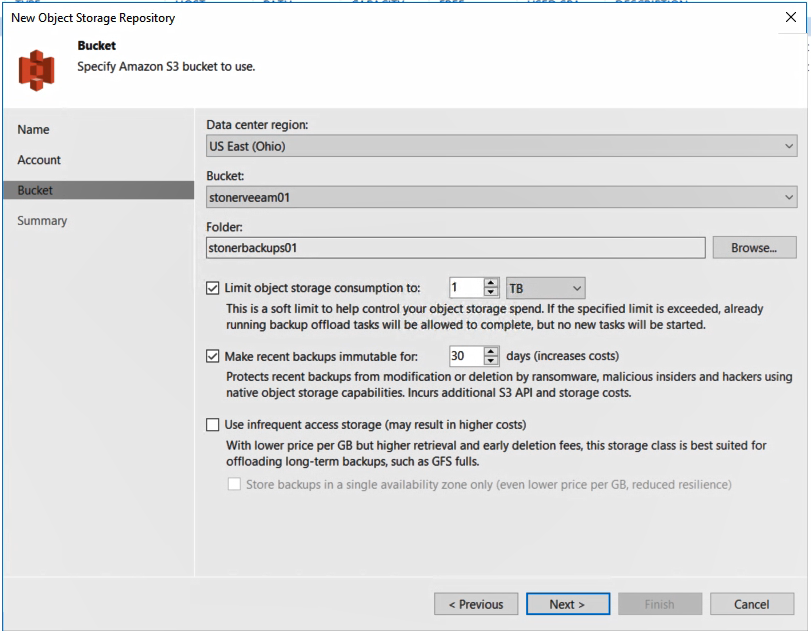
    backup and recoveryAt the same time, Allan said backup and recovery platforms are playing a more strategic role in the battle to combat ransomware. Veeam Availability Suite v10 users can create an immutable copy of data that can reside in any platform that supports the S3 API defined by Amazon Web Services (AWS). Dubbed S2 Object Lock, the offering was developed with the goal of creating a pristine image of a data set that can be recovered in the event of a ransomware attack that a cybercriminal or malicious insider has employed to encrypt an organization’s data.
    In addition, Veeam is moving to lower disaster recovery costs by making it possible to recover multiple virtual machines simultaneously in the event of a data center outage.

    Finally, an API now makes it possible for analytics applications to access data stored using Veeam Availability Suite.

    Fresh off being acquired by the venture capital firm Insight Partners for $5 billion, Veeam is moving to expand its core capabilities for backing up virtual machines to create a data management platform that will span multiple clouds. The goal is to create a platform for managing data across a hybrid cloud computing environment, Allan said.

    With organizations now routinely managing petabytes of data, competition among backup and recovery vendors has never been more fierce. Each provider of backup and recovery tools is, to one degree or another, evolving into becoming a data management platform, a process that largely began when IT teams stared using backup tools to migrate large amounts of data into the public cloud. Now the providers of those tools see an opportunity to enable IT teams to move data not just in and out of clouds but also between them.

    It’s too early to say how this battle will play out. Backup and recovery is one of those rare categories of software that refuses to be consolidated even as new startups launch regularly. It’s not uncommon for most IT organizations to employ multiple backup and recovery tools from different vendors. Less clear is how long the tendency to employ multiple tools will persist, but as new capabilities are added to each backup and recovery tool the pressure on the other tools to continue to prove their value continues to intensify.

    — Mike Vizard

  • Backup: Not So Easy in Certain Environments

    Backup: Not So Easy in Certain Environments

    We discussed how backup needs to be reinvented for a new era cloud-native applications, and what you should look for in a modern database backup and recovery solution. But even if you scrap the traditional approach to back up and write scripts to handle the task, backup and recovery of next-generation applications and databases (Apache Cassandra, MongoDB, Amazon DynamoDB, Microsoft DocumentDB, Apache HBase, et al) can be frustratingly difficult. But why is that?

    The short version is this: In an eventually consistent write-anywhere non-relational database architecture, it is almost impossible to capture a consistent state backup. Successful data recovery is even less likely!

    There isn’t just one reason why this is the case. It comes down to the basic nature of a distributed architecture that’s designed to both scale and withstand node failures without downtime. As we’ve highlighted below, there are several challenges from the start that make backing up a distributed architecture difficult:

    • Data is written to an available node. The first landing point for data is not predictable, so there’s no way to catch data as it lands on the node.
    • Then data is replicated to at least one other node before verification. That ensures a valid write, but also immediately creates a copy of the data.
    • … then replicated to one or two more nodes for availability. This happens afterwards, and the same data can get updated in quick succession.
    • … meaning there are three or four copies of data at any time.
    • … and nodes are never immediately consistent.
    • … and backups are hugely inefficient since every replica is copied.
    • And when a node fails, the topology changes mid-flight.

    Theoretically, a good DevOps team might be able to write scripts that will back up the database successfully 80 percent to 90 percent of the time (cases such as multi-node failures, changing topologies, compaction of databases and many more are complex to model, so scripts are difficult to get right).

    Unfortunately, backup is the “easy” part of the equation. Restoring a backup is where it really gets challenging. A successful restore is far more complicated than most people assume. It involves the following steps:

    • Rebuilding the correct topology. Because each node was backed up individually, the database has to be restored to the same topology (six nodes to six nodes, 12 nodes to 12 nodes), etc. This relates to enabling recovery across clouds, test/dev and CI/CD use cases.
    • Waiting for the database to repair and restore itself. The non-relational database architecture can withstand node failures and keep running, but a full restore with data reconciliation will bring back memories of the worst RAID rebuilds on slow drives.
    • Deduplicating multiple inconsistent copies. The backup copy has three or more copies of all data that may be in an inconsistent state. It needs to be deduplicated or reconciled first.
    • But data history isn’t always available. In most distributed architectures, the oplog is a circular buffer that essentially eats itself as it goes! It may not be possible to even recover the necessary log data to reconcile the database.
    • And there’s no reliable way to go back to a point-in-time. Even with the oplog data, it would be very difficult to reconstruct point-in-time data. At best, you’d get a recent, mostly accurate copy of the database.

    In the real world, restores can take days or weeks—if the data can be recovered at all.  But as the recent Gitlab outage shows, it is difficult for even technically savvy organizations to get it right. Human error can be as fatal to a database as a natural disaster if there isn’t a reliable backup and recovery process in place.

    — Shalabh Goyal

  • A Modern Database Backup and Recovery Checklist

    A Modern Database Backup and Recovery Checklist

    Do you have single points of failure? How do you handle deduplication? These questions and more need consideration when you’re dealing with database backup and recovery.

    Enterprises are quickly onboarding next-generation, mission-critical applications such as eCommerce, artificial intelligence, machine learning and Internet of Things (IoT) on non-relational databases and distributed local storage. However, as organizations move these applications to scalable databases because they are easier to deploy, always available and cost-effective, they also need a robust and scalable backup and recovery solution to protect these modern databases.

    The challenge is that although enterprise adoption of next-generation applications has been rising, the risk of data loss is prevalent. That’s because non-relational databases lack any viable data protection and recovery solution.

    Here is what I mean:

    • Currently, there is a lack of a solution that allows for corrupted data to be removed, replayed and propagated with minimal downtime to customer-facing applications.
    • Reputable studies have concluded that as much as 75 percent of data disasters ultimately leading to downtime are the result of some sort of human error. Because human errors have a big impact on business operations and occur randomly, they cannot be solved by solutions that are offered today, such as native database replication or node-level snapshots.
    • Database replication does not provide point-in-time backup and any-point-in-time recovery, so enterprises cannot go back and fix these errors. In fact, if errors are introduced, the databases’ redundant-node replication can lead to almost immediate corruption across all nodes of the database.

    So, as you begin to explore backup and recovery solution for your next-generation applications, below is a list of items to keep in mind.

    Storage Is No Longer Unified or Shared Storage

    A key architectural transition is occurring where monolithic pools of shared storage are no longer used for next-gen applications and databases. Next-generation databases are scale-out in nature and use commodity storage at a node level, creating a highly distributed storage pool. This distributed storage pool provides both low cost and high performance, but is not conducive to using traditional database backup and recovery tools, which rely on database durability logs (from a shared storage LUN) for a point-in-time backup.

    Eventual Consistency Has a Big Impact on Backup and Recovery

    Next-generation databases are not built around the traditional ACID (Atomicity, Consistency, Isolation, Durability) transaction model. Transactions are a mechanism for guaranteeing these properties; they are a way of grouping related actions together such that as a whole, a group of operations can be atomic, produce consistent results, be isolated from other operations and be durably recorded. Eventual consistency, however, brings forth new challenges to generate a consistent point-in-time view of the database for operational recovery or test/dev needs. Therefore, novel and scale-out data protection technology to address eventual consistency is needed.

    Deduplication Matters at Scale

    With traditional databases, unified or shared database storage, block-level snapshots made image-based recovery and rollback relatively efficient. Distributed storage combined with a scale-out database that commonly involves replication of data rather than joins across tables led to a rapid proliferation of redundant data and increasing storage requirements (three to four copies of every write operation). Effective data reduction at scale is critical to success and economics for effective data protection in this environment.

    Single Points of Failure Do Fail

    Legacy data protection approaches have commonly involved a media server, which presents a choke point for secondary data path and single point of failure. Given the very high ingest rates coupled with the real-time nature of applications deployed on modern scale-out databases, next-generation data protection infrastructure has to be distributed to handle performance (RPO and RTO windows) and resiliency for always-on environments.

    Checklist for Modern Database Data Protection

    • How do you protect your next-generation scale-out databases today? What scenarios of data loss are you worried about?
    • What downtime can your applications or business handle in the event of data corruption?
    • Have you validated backup and recovery for your next-generation databases?
    • Can you prove compliance with regulatory or line-of-business requirements for backup of your critical next-generation infrastructure?
    • Can you recover to a desired or any point in time quickly? What manual effort is required to do this?
    • How much storage is required to store your desired pool of recovery versions?
    • Does your data protection approach scale out with your application and data growth?
    • Can you efficiently refresh your test/dev environment to a smaller or larger cluster size as needed?
    • What happens to your backup solution when a database node fails? Can you still perform backups? How about intermittent network failures?
    • Native formats free you from vendor lock-in and allow for data management services, such as search and analytics on secondary data.
    • Can you recover your data in native format?

    — Jeannie Liou

  • Evolving Data Requirements in Multi-Cloud Environments

    Evolving Data Requirements in Multi-Cloud Environments

    By design or by accident, multi-cloud is a reality that most enterprise IT teams have to cope with today. Multi-cloud (or, cross-cloud, as Dell EMC calls it) refers to an IT model where an organization uses services of one or more public cloud service providers, sometimes in addition to using its own data centers. In a multi-cloud model, different clouds may be used in different stages of the application life cycle such as test/dev and production, and for different types of applications such as traditional structured applications and next-gen cloud applications. Nonetheless, IT leaders face challenges in identifying data management tools they need to embrace the multi-cloud environment to improve application agility, reduce operational hassles and enhance application resilience. In this blog, I will discuss how enterprises are using a multi-cloud model and the requirements it places on next-generation data protection products.

    One common reason for multi-cloud is to support geo-replicated applications to enable global reach of e-commerce organizations. In such a scenario, a production database may reside on a private cloud behind an enterprise firewall and replicated to multiple regions in a public cloud to service reads (i.e. consumers are shopping on these e-commerce sites) from different regions at low latency. Such a configuration also protects against disasters at the data center level because the database and application are replicated to public cloud (with multiple availability zones).

    Another use case is to service the requirements of production environment versus test and development environments using different clouds. While security, control and performance optimization may mandate a production environment to stay within a private data center, agility, access to new capabilities such as Google BigQuery and developer preferences may drive application development teams to use a public cloud service providers.

    Finally, using a multi-cloud model could also be driven by the IT strategy of an enterprise to prevent overdependence (or, vendor lock-in) on any one public cloud service provider. To hedge the risks and get leverage, an enterprise may balance its application workloads across multiple cloud providers—for example, deploy Tier-1 applications on one cloud and Tier-2 applications on another. It is a real phenomenon we are seeing with enterprise customers! However, a multi-cloud model presents the following unique challenges to enterprises.

    • Data protection in multi-cloud environment: Legacy data protection (backup and recovery, archiving, replication) products were architected for on-premises environments and optimized to work with legacy applications. Using legacy backup and recovery tools for next-generation applications in a public cloud environment is equivalent to fitting a round peg in a square hole. For one, legacy products don’t leverage the elastic and scalable compute and storage that is available in public cloud. True infrastructure-independent (software-only and elastic compute-based) data protection products that may be deployed in heterogenous environments are required as enterprises look to migrate applications to the cloud.
    • DevOps agility: Moving data across clouds for disaster recovery or to refresh test & development environments with production data is another key requirement for enterprises. Doing so in a multi-cloud environment is not an easy task given the challenges in moving data over the WAN. There are also differences in configuration between test/dev and production environments. Further, the test/dev environments may not be as large as production environment so sub-sampling is required. Finally, personally identifiable data needs to be masked before it leaves the production firewall.
    • Ease of management and governance: Finally, federated management is required for applications and workloads running across multiple clouds. It is extremely inefficient to get familiar with different management tools and their intricacies.

    This is by no means a complete list. There are several other requirements, such as support for cloud storage with consistent performance, handling of identity access and management processes and so on. The point is that data protection needs to be re-thought in the context of multi-cloud environments.

    — Shalabh Goyal

  • The Cost of Rework when Developing for OpenStack Clouds

    The Cost of Rework when Developing for OpenStack Clouds

    According to the 2016 State of DevOps Report by Puppet and DORA, the mean time to recover when a service incident occurs ranges from less than one hour for high IT performers to less than one day for medium and low IT performers. Put that in a real-world scenario: your OpenStack application and the data associated with it that spans multiple virtual machines failed (for one reason or another). Now you need to rebuild something you’ve already spent time developing. Are you—and your boss—OK with that rework taking hours to days? Or do you think you’d be wishing you fell in the range of high IT performers, and you could quickly recreate what you lost in less than one hour?

    Now, take it a step further. What could you be doing with that time you now need to dedicate to rebuilding something? What will that rework take you away from? The next phase of your development? Lunch? Happy hour? Sleep? What price would you put on the personal cost to you?

    The 2016 State of DevOps Report authors wanted to calculate the cost of excess rework per year for organizations. They created a formula to calculate the number:

    Cost of excess rework = Technical staff size x average salary x benefits multiplier x percentage of technical staff time spent on excess rework

    Here’s what they found:

    • High performers have 11 percent excess rework
    • Medium performers have 22 percent excess rework
    • Low performers have 17 percent excess rework

    At first glance, those numbers seem odd. Why would the low performers have less excess rework than the medium performers? The report clarified that by explaining “low performers spend less time on rework … because they report spending a greater proportion of time on new work. We believe this greater amount of new work could be occurring at the expense of rework, thus racking up technical debt.”

    It’s clear all organizations have some amount of rework as a result of a failure of some kind. The question is, What is the cost of that rework? Let’s take a look at the results of the study.

    Cost of rework - 2016 State of DevOps Report by Puppet and DORA; OpenStack DevOps

    For the most part, the simple answer is that rework will likely cost your organization millions (unless it’s costing you billions). It’s just a matter of how many millions.

    We often get asked why it’s necessary for OpenStack environments to have a data protection strategy and a backup solution. The conventional (but wrong) thinking is that virtualization can take the place of data recovery. Frankly, the answer to why is contained within those numbers above. If you don’t have a backup and recovery solution for your OpenStack development efforts, are you willing to spend money and resources on reworking the lost data? And if you are, how many millions are you willing to spend on it? Let me remind you that you are trying to recover to a point in -time … persistent data included. If you say, “If you built your cloud appropriately, this shouldn’t be an issue ….” Madame or Sir, if your virtualized cloud has that kind of resiliency, then I would like to work for you.